
|
|
|
|
||||||||||
| Xoutpost server transfer and maintenance is occurring.... |
| Xoutpost is currently undergoing a planned server migration.... stay tuned for new developments.... sincerely, the management |
 |
|
|
LinkBack | Thread Tools | Display Modes |
|
#1
 06-20-2007, 01:25 AM
|
||||
|
||||
|
▀▄ eas - [DIY] Adding Speech Voicetags to your DICE/iPod Playlists
Most iPod kits on the market lack text display, with exception of the DICE kit. Once great feature of the defunct ice>Link was its Playlist directory listing on the BMW display, however trying to drive and read this on your radio or Navigation screen could be distracting at times. One idea would be to use a "text to speech" program to create a small speech file (voicetag) that would announce the Playlists to you, without ever taking your hands off the steering wheel or eyes off the road. These files are very small (about 50kb) and add a very cool feature to your iPod listening experience. Since the HD DICE and Standard DICE kits allow unlimited Playlists, this is a very beneficial mod to your existing system: DICE iPod Integration Kit for BMW http://www.europeanautosource.com/pr...roducts_id=268 DICE High Definition Radio w/ iPod Integration http://www.europeanautosource.com/pr...roducts_id=467 Of course, this can be used with other BMW-specific iPod kits on the market. Setup First we will need a Text to speech program. The one we will be using in this example is AT&Ts Text-to-Speech Demo, which is available to you at no charge and fully web-based so there's no software to install. You have 15 different speech patterns to choose from, in different languages and male/female voices. At&T Labs Text-to-Speech Demo: http://www.research.att.com/~ttsweb/tts/demo.php#top Let's begin: 1. Navigate to the page in the above link to choose your voice/language and voicetag you wish to create. In this example, we are creating a voicetag called "The Rolling Stone Collection", the name of a Playlist in our iPod nano.  2. Choose the voice/language and text you wish to "label" your Playlist with. Selecting the SPEAK button will give a preview of the choice you have name, DOWNLOAD will move onto the next step. Let's select DOWNLOAD. Note: It is possible to change the way the speech sounds by altering the input text. Liberal use of commas is the easiest way to get better phrasing, especially in long complex sentences. Overall speed can be controlled using XML-style tags from the SAPI, SSML, and JSML test markup standards, e.g. <prosody rate="slow"> this is speaking slowly </prosody>. <prosody rate="fast"> this is speaking fast </prosody>. <prosody rate="-50%"> this is 50% slower </prosody>. Precise pauses can also be inserted using the <break/> tag, e.g. Break for 100 milliseconds <Break time="100ms"/> Okay, keep going." Break for 3 seconds <Break time="3s"/> Okay, keep going." Voices and languages can be intermixed using the <voice> tag, e.g. <voice name="crystal">Crystal, 1 2 3.</voice> <voice name="mike">Mike. <voice name="rosa">Rosa, 1 2 3.</voice> Back to Mike.</voice> Most people can use the default settings, but this is to show the voices can be corrected if your tag is not pronounced properly. 3. You will be presented with a clickable link in a WAV format. Right-Click the link and name the file to whatever you choose. In this example, we name the Playlist to "!rollingstone". The exclamation mark allows the files to be first in our directory and easy to locate, but you are free to name it whatever you like.  4. Open up iTunes and connect your iPod. Select the Playlist you wish to place the voicetag file into. 5. Locate the new voicetag you created and drag to the first position in your Playlist.  6. When complete, right-click the Playlist you just placed the voicetag into and select "Copy To Play Order". This will ensure your play order is retained from iTunes to your iPod.  7. Repeat steps for duplicate voicetags. You can have as many as you wish, although one voicetag per Playlist is recommended. 8. Eject iPod, you're complete. Operation Plug your iPod into your BMW and select iPod mode. Press CD2 on your Radio or NAV screen and press the UP/NEXT arrow on your steering wheel or Radio/NAV unit. You will be presented with the new voicetag you just created as an introduction to your Playlist. Good examples would be your first Playlist containing your entire iPod library. You can use the voicetag "Entire iPod". Other Playlists and voicetags can be created depending on your preference. For users with multiple Playlists on their iPod, this is a very useful mod making your iPod listening experience much better at no additional cost while keeping your hands on the wheel and your eyes on the road. Comments and suggestions are welcome. 
__________________
Tom G. | european auto source (eas) email: [email protected] web: www.europeanautosource.com tel 866.669.0705 | ca: 714.369.8524 x22 | fax: 714.908.1796  Twitter | Flikr | Facebook | YouTube 
|
| Sponsored Links | |
|
|
|
|
#2
06-20-2007, 01:51 AM
|
||||
|
||||
|
Tom, what a great idea!! We should make this sticky!
All you guys, if you need an iPod DICE install or any expert audio/video mods in your BMW, definitely give Tom a call at EAS! 
__________________

|
|
#3
06-20-2007, 08:11 AM
|
||||
|
||||
|
Great DIY write up, Tom,
I use ATT TTS for some voice projects too, and it sounds great and is really flexible. Thanks for this addition to the knowledge here.
|
|
#6
06-26-2007, 11:02 PM
|
||||
|
||||
|
Tom,
With my iPod/Most bus integration kit ('06 530xiT), my playlists play in alphabetical order (by artist, by song title) even though my playlists are arranged in specific song order when I sync my iPod. I didn't have that problem with my old iceLink. Is it a idiosyncracy with the BMW kit or do I have something set up incorrectly with my iPod or iTunes? Thanks!
|
|
#7
06-26-2007, 11:09 PM
|
||||
|
||||
|
Quote:
__________________
Tom G. | european auto source (eas) email: [email protected] web: www.europeanautosource.com tel 866.669.0705 | ca: 714.369.8524 x22 | fax: 714.908.1796 Twitter | Flikr | Facebook | YouTube
|
|
#8
01-08-2008, 02:40 PM
|
||||
|
||||
|
coolest advice.. i've done half my playlist.
__________________
-- 2005 LeMans Blue e53 4.8is MODs ///LeMans Blue RBs///Intravee II///Sirius///ACS Spoiler///AiB v3///HID Fogs///LED Tails/// ///215 20" Ferric Gray///MTEC Pedals///DVD Headrests///SMG M Wheel///AFE CAI Stage 2    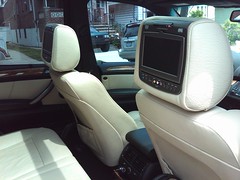
|
|
#9
01-08-2008, 02:52 PM
|
||||
|
||||

Hows it working out rastaFarai? Did you try it in the X yet?
|
|
| Bookmarks |
|
|
|
|

![▀▄ eas - [DIY] Adding Speech Voicetags to your DICE/iPod Playlists](https://xoutpost.com/iconimages/mobile-electronics-forum/eas-diy-adding-speech-voicetags-your-dice-ipod-playlists.gif)








 Linear Mode


